It Doesn’t Matter Why He Did It

I usually avoid posting political topics here, but I can’t help but link to this excellent post from The New Yorker regarding the recent attack in Arizona. I think the whole thing is dead-on. I agree with people who say that we can’t draw direct lines between things like Sarah Palin’s crosshairs-on-political-districts graphic and this attack, but we can hope that our leadership can frown upon and distance itself from the over-the-top rhetoric we’ve been getting too much of lately.

The massacre in Tucson is, in a sense, irrelevant to the important point. Whatever drove Jared Lee Loughner, America’s political frequencies are full of violent static.

Web Surfing on Gingerbread

(I’ve been posting about my experiences with the recently released Nexus S and the associated Android 2.3 Gingerbread operating system. Start here if you’re interested in the earlier posts. There are links to all of the Nexus S-related posts at the bottom of that page.)

One of the things I do most frequently on my phone is read things from the web. I do this in a variety of ways, but the most common are: read links from friends, which I get from Twitter or Facebook; read things I’ve saved to read later, usually via (the most-excellent) Instapaper; read items coming from subscriptions to RSS or Atom feeds (I use Reeder on the iPhone). I’ve already mentioned the Facebook and Twitter apps, so I’ll skip re-treading that ground. Let’s start with the basics.

The Browser

The web browser on Android is an interesting beast. It isn’t called “Google Chrome” or anything else, really; it’s simply listed as “Browser”. It’s a WebKit-based browser, if that means something to you. WebKit is the rendering engine behind many browsers, including Apple’s Safari, both on the desktop and iOS devices, as well as Google Chrome. The browser seems to render pages well, in my opinion. “Well” as in the pages look as I’d expect. In the two weeks I’ve been using the phone, the sites I visit render quickly and legibly.

In comparison to Safari on the iPhone, though, I still feel like Browser is behind. The main thing that bothers me is something I’ve frequently heard and felt about Android in general: there’s something that just feels less refined about it. Of course, that means I start to pay attention to when I get that feeling and figure out what I did that made me feel that way.

Zooming

First up is zooming. On a device the size of the Nexus S, zooming is inevitable; there’s just not enough room on such a small screen to take in a web page designed for a desktop experience. There are a couple of ways to zoom in Browser, double tapping tapping and pinching. Tapping, which I usually start with, involves tapping the item you want to zoom in on. It might be an image or column, for instance. Browser then animates a magnification, as though you are either physically getting closer to a real page or the page is getting bigger behind the view port of the phone.

One thing that I noticed is that columns of text sometimes reflow in Browser as it zooms. For example, imagine a web page with three columns of content. Double-tapping on one column zooms you in to focus on that column. As the perspective changes, the column seems to change width and the text wraps differently, which I find jarring. Similarly, the animation of the perspective switch isn’t very smooth, which leads to a less satisfying feeling.

On the iPhone, double-tapping has a similar zooming effect, but it almost always seems better in both of these regards. Text doesn’t reflow as the perspective changes, although the text does get blurry and sharpen once the animation is complete; Browser keeps the text sharp at all times in the process. I prefer the iOS method of keeping the animation smooth to the detriment of the text’s sharpness (until it stops moving, anyway). I should note that the iPhone 4 does this even more quickly than does my 3 GS and the effect is even better on that device.

Pinch-to-zoom is another way to zoom in, and is particularly useful if you want to get closer, but not fill the screen with a particular element. It’s also unfortunately necessary because of another zooming bug. Frequently, I’ve tapped to zoom in to a column of text, only to have it zoom a little too far. Too far in that some of the content is flowing off the right edge of the screen. A quick pinch to zoom out brings it back, but it’s annoying to have to do that at all. Anyway, pinching has a similar chunky feel to zooming if you do it quickly enough, or also scroll as you pinch to enlarge. Pinching was something that wasn’t possible at all when I had the Droid last year; multitouch had not yet been enabled in the apps on that phone, so just having it is a step forward.

Scrolling

Scrolling in Browser feels a little detached compared to my 3 GS. Flicking the screen causes a scroll that has a feeling of velocity that seems less satisfying in Browser than on Safari. Like zooming, it’s about the tricks that the iPhone is playing to keep the feeling smooth. First, if the iPhone can’t keep up with a scroll (particularly on a long page), it’ll instead scroll a checkerboard pattern, but maintain the “velocity” that it would scroll the page at if it could. Android’s Browser seems to instead drop frames from the animation, making it feel chunkier. Overall, Browser is less satisfying. With this effect, and the zooming effect mentioned above for that matter, Safari seems to keep up better than Browser before it relies on these tricks. Safari also has a nice “bounce” effect if you reach a page boundary and it was scrolling with momentum. The screen seems to bounce back from

New Windows/Tabs

The iPhone has a nice metaphor for pages, which would be represented as tabs on a desktop browser like Safari or Chrome, where it shows you a small version of a page and you can swipe left and right to get to others you have loaded. Browser simply has a list. It’s functional, but much less satisfying.

Google Reader

Google Reader has an Android app, and I’ve been using it as a replacement for Reeder on the iPhone. Reeder is itself a front-end to the Google Reader service, and I find it to be better than a the first-party Reader app for Android. Google Reader is functional and performs well, but the small UI things Reeder does, like letting you flick a story to the right to go back to the list of stories, is nice. Also, Reeder comes with several things to do with links you read, and I constantly use it to send things to Instapaper. Google Reader only uses its service’s own “share” function, which posts it to Google Buzz, among other things. You can also “star” an item to read it later, but I like sending it to Instapaper. There are other, minor quibbles, but I’ll just say I like Reeder better and leave it there.

In general, browsing on Android has gotten better since I last tried it, but it hasn’t yet caught up to the iPhone. That’s a shame, because I spend a lot of my time on the phone looking at web pages, so it’s a big deal to me. In fact, I bet I spend more time in the browser on my phone than I do talking on a phone call. Next up, music and audio.

Powermats in GM Cars

Putting Powermats in cars is a great idea. There are two reasons to plug your phone into your car: to get audio out of your phone and to get power into it. With the setup I have for the iPhone, it’s one cord—the proprietary 30-pin connector—so I guess that’s ultimately not a big win. However, one of the drawbacks to the Nexus S’s approach with its Micro-USB connector is that I have to plug two things in when I get in the car: the Micro-USB for audio and the headphone jack for audio. I’m sure someone will (or has, and I don’t know about it) come up with a way to put those two things together in just the Micro-USB connector as they have for the 30-pin iPhone connector, but I haven’t seen it yet.

In any case, making it so you don’t have to plug anything in if you don’t want to is a positive step. Plus, Powermats work on other things besides just phones.

An App Apart?

(I’ve been posting about my experiences with the recently released Nexus S and the associated Android 2.3 Gingerbread operating system. Start here if you’re interested in the earlier posts. There are links to all of the Nexus S-related posts at the bottom of that page.)

There’s no secret that the iPhone had a big jump on Android. That lead translated to a bigger app store for the iOS devices, and that is frequently touted in the press as an advantage the iPhone enjoys over its Android competition. Last year, I found that it wasn’t a lack of apps that bothered me about Android, but rather the relative maturity and quality of design of the apps it did have. So, the big question for me is: how have things progressed in the past year? There a lot of apps, and this is a hard question to answer, and it’s going to take more than one post. Let’s start by looking at Google’s first-party apps, which tend to be among the best Android apps, in my opinion.

Google Voice

Google Voice, as I remarked last year, is perhaps a killer app for Android. While there’s now an app for Google Voice on the iPhone, it’s just not the same level of integration as is possible on Android. I’m not going to talk about what the Google Voice service itself does, since you can search about it if you don’t know. I do highly recommend looking into it if you aren’t familiar with it.

The Google Voice app integrates into the dialer on the Nexus S and routes calls to and from Google Voice as transparently as you wish it to. You can specify that it ask you on each call whether to place it with Google Voice or your normal carrier, or (as I do) to simply put all calls through GV. It also provides contact, history and other information from Google Voice into the respective places on the phone. You can also launch the app itself to manage many of the GV service’s settings. This app is one of the main reasons I’m back looking at an Android.

Maps and Navigation

Another of those reasons is Google Maps and Google Maps Navigation. These are separate apps, but they’re so related that it’s difficult to talk about one without referring to the other. Google Maps recently released an update that draws the maps with vectors instead of pre-rendered bitmaps, and the quality of the drawings has improved. There are now 3D options to tilt and rotate the map and even add 3D buildings to the map. In addition to the already strong maps, these are welcome enhancements. Also present are Google Street View, satellite views and real-time traffic overlays. This is a wonderful app, and it’s quite a bit better on Android than on iOS.

Google Maps Navigation is a phone-based replacement for portable navigation devices, like those from TomTom, Magellan or Garmin. You can use voice or keyboard input to give it a destination and it not only maps a route, but also provides turn-by-turn directions with voice commands. Unlike my last encounter with this app, I found it to be fiddly and its robotic voice chatty and annoying. I use a TomTom device, and think it’s generally more pleasant, but it’s also not free. Nor is it being improved as constantly as Google’s offering, so I still think TomTom and company have a tough road ahead of them if they still want to sell standalone devices for this purpose. It’s possible that my experience this year is marred by the lack of a car dock for the Nexus S, which was a big help in keeping the Droid stable and easily accessed in the car. In any case, this is still a great app and a big boon to Android users. A big addition, which I haven’t had cause to test, is the ability to continue navigating even if the phone loses its data connection. Since the app doesn’t install a whole pack of maps, as some nav apps do, it relies on its data connection to keep updating you, but Google has apparently worked around this limitation. It’s a good example of their relatively quick iteration on this app. I’ll try and write more about what I found “fiddly” about GMN in a future post.

Mail, IM and Texting

Gmail is a fine mail app, but it’s still distinct from the other email app, and the distinction isn’t welcome. There’s no unified inbox, an area where iPhone has caught up and surpassed Android, and there are options available in one and not the other. For instance, the ability to notify on only the first new email and not every new email is there in Gmail but not other email. The Calendar app integrates well with Exchange and while the UI is spartan and ugly, it’s functional and relatively easy-to-use. Both apps handle multiple accounts well. Neither offers a batch delete or move operations, which is annoying when you want to prune some less-important messages.

Google Talk is great on Android. It can be set to keep you online, but away (and marked “mobile”), again because of Android’s true multitasking nature. It’s nice to still be reachable via IM but marked in a way that raises the bar most people use when deciding whether or not to IM. Launching the app is fast and marks you as available to your contacts. IMing is as-expected, and well-implemented. It’s a simple, powerful app.

The Messaging app is fine. I prefer its no-nonsense layout to the cartoony, iChat-like look of the iPhone text app.

Social Network Apps

As far as social network apps go, Android’s offerings have matured considerably since last year. The Facebook app, which I liked last year for its nice contacts integration, has caught up and surpassed the iOS version in the past year. The news feed is the main attraction, and it’s pretty much the same as on iPhone. The chat feature is more robust, and can continue to work while the app isn’t frontmost, unlike the iPhone version. It also continues to get status updates in the background so when you first launch it, it already has new data to read without waiting for it to fetch them.

Last year, Twitter didn’t have a first party app and the then-leading third-party app was Twitroid. I found Twitroid to be lacking, and thought this was one spot where Android was far behind the state-of-the-art on the iPhone. Since then, Twitter has released its own app, and it’s similar to the iPhone app, and much better than I found Twitroid last year. I understand that Twitroid has improved in that time, but I didn’t bother to download it.

Foursquare and Gowalla are location-based social services, and their mobile apps are both represented on Android. I didn’t use either service last year, but have taken them up on the iPhone. Foursquare’s app is functionally similar to the iPhone version, and is visually as attractive, but it’s far more buggy. I have some problem with it not being able to locate me or nearby venues, or in some cases any network connection, despite other apps having no trouble with the same. These problems usually resolve themselves pretty quickly, but the quality isn’t on par with the iPhone. Gowalla, too, lags its iPhone cousin. While I didn’t have bugginess in Gowalla, the newest version of that app has many features that seem to be lacking in the Android version, such as Foursquare integration. It’s still a good-looking, functional app.

Miscellaneous Apps

Last time around, I really missed two apps: 1password and OmniFocus. 1password is a password safe, which stores passwords, wallet info (credit card, account information, etc.) and sensitive notes in a secure, encrypted manner. Its absence on Android last year made surfing and using online services painful since that store makes using hard-to-type, impossible-to-remember passwords easy to have. That’s a good thing, and hard to give up. There’s now an Android version of 1password, and while it’s not quite up to the level of its iOS counterpart, it’s a good app and very welcome. It syncs over Dropbox, which is great. Now my passwords are all up-to-date on all of my iDevices, my computers and now Android. Wonderful.

Omnifocus is a GTD app, and it’s still not on Android, nor do I expect it ever will be. This year, though, the iPad came out and I’m not looking to replace that with an Android device. Now that the iPad is with me a lot of the time, my reliance on the iPhone version is greatly diminished.

So What Does All This Add Up To?

So far, this is all good news—there’s much here to recommend these apps. So what are the downsides, especially compared to the iOS equivalents? First, performance among third-party apps is highly variable. For instance, scrolling in most of them is well behind the standard on iOS. Where most iOS apps feel silky smooth when scrolling lists, Android apps frequently feels laggy, jittery or slow. Not all of them, nor all the time. Google’s own apps are mostly immune, although the mail apps don’t feel as smooth as I’d like. But where the main Android interface feels smooth and fast, apps tend to feel much less so. I can’t say this is a big deal most of the time, but it’s a near constant nag reminding me that I’m not using something that’s baked as long as iOS. The inconsistency of the back button and the menu button I mentioned yesterday makes each app feel like it was implemented without a solid set of standard examples, where on the iPhone most apps use a visual and operational language that’s easy to learn and pretty consistent.

Still, these are good apps and the gap has closed considerably with iOS in most cases and there are many things made possible by true multitasking that are just plain cool and I wish they could happen on an iPhone. App notifications and fast app switching are nice (and I sometimes miss the latter on Android; the long-press switching isn’t the same), but they’re no replacement for real multitasking.

I haven’t talked about a couple of areas that are my most-used and most important: web browsing and media playback. I’ll write about those next time.

The Gingerbread Phone

As I mentioned earlier, I’ve been using a Nexus S as my only mobile phone recently. One of the key features of that phone is its operating system, Android. The reason that the Nexus S is particularly notable is that it’s not only the first phone shipping with the newest version of the Android OS, 2.3 (code-named Gingerbread), but it’s pure.

When I say “pure”, I’m referring to the fact that it is Android as Google develops it; there are no carrier crapware add-ons. No skinned UI, no shitty apps you can’t delete because of some deal the carrier made with another company and no features that stock Android provides but that the carrier cut because it wanted to sell you an inferior version of their own that they charge for. So, like the Nexus One before it, the Nexus S is the Android phone Google would ship if they made it themselves.

I used the original Droid back when it came out, which was a couple of major revisions behind the Nexus S in my hand now. What’s improved? Is it enough to get me to switch from the iPhone? I’m not making that decision yet, but let’s look at the good and the bad of the Android OS, as I see it today.

Android has gotten a bit of a facelift in the past year. It’s not as dramatic as I’d like, but I think that the look is pretty good. There are minor improvements, like an orange glow that appears at the top or bottom of a scrolling list when you go “too far”. Think of the elastic feeling of iOS devices when you go too far, and this is the equivalent. Android is still a bit abrupt in a few places like screen rotation, where the iPhone animates the transition, Android just pops into the new orientation.

Like an iPhone, one can arrange icons of apps in grids on many “home screens”, which you can access by swiping side-to-side to scroll among them. These home screens don’t have all your installed applications as they do on an iPhone, but have the apps you’ve chosen to place there; there’s another way to look at every app on the device, by tapping a grid-like icon at the bottom of the screen.

Apps aren’t the only things you can put on a home screen though. There are widgets, which are typically small info-at-a-glance applications which are always running and updating on the screen on which you place them. For instance, I have a Google search bar widget on my main screen and you can type and search from there without first launching an app. There are others too, such as weather and clock widgets. I like those two, but had a hard time finding anything else I found particularly useful.

You can put shortcuts on the home screens as well. Shortcuts are icons that provide one-touch access to almost anything: browser bookmarks; a link to a particular spot you navigate to frequently; a setting of the OS. Third-party apps can add to what kinds of shortcuts one can make. Foursquare allows you to create a shortcut to a venue once the app for that service is installed, for instance. Handy.

Another customization one can make is choosing a background. Standard backgrounds are simply images, although they have a pretty cool parallax effect to them. By that I mean that the background moves left and right as you move among the home screens, but at a slightly slower pace than do the other items that appear to be on top of it, creating an illusion of depth. While that’s a nice touch, there are also animated backgrounds, which I loathe. The stock background has lines of color moving, like Tron light cycles or something, behind your apps. They’re terribly gaudy, in my opinion.

Navigating the screens is fluid and responsive. I never feel like I’m waiting for the phone to respond to a request to scroll or react to a touch event. I’d say that the speed of navigation is mostly on par with the iPhone 3 GS I’ve used for the past couple of years. It’s not all roses, though. There are some things that just feel hokey to me.

First up is the back button. While it’s sometimes useful to have a system-wide back button, it’s frequently not obvious what you’d be going back to when you press it. A good thing about it is when you use an app that opens another component to fulfill a function, say opening a browser to read a web link, Android does so with the same browser you get when you click the browser app from the home screen and not some custom, inconsistent browser-within-an-app that’s so common on iOS. When you tap the phone’s back button, you go back from that browser to the app where you left it. Likewise, you can go all the way back the way you came through the app to get there. So far, so good.

Sometimes, though, you can get pretty deep, having gone from RSS reader to a story, to a linked page and so on, and while you know that if you keep tapping back, you’ll go back the way you came, sometimes it’s easy to get lost and forget where “back” is. In iOS, the back arrow has some context associated with it, and that’s missing here. Confusingly, the back button is also used as a kind of cancel button in some cases. For instance, when you get a modal menu of some kind from an app or by pressing the menu button, the way to get out without making a selection is (sometimes) hitting the back button. While that makes some amount of sense, I frequently got a menu of some sort and had no idea how to get out of it. I figured it out, of course, but it wasn’t intuitive.

Some apps remember where you left off when you left them. In Gmail, if you leave the app while on a message—say to the home screen—and come back by relaunching Gmail, it’ll still be on that message. But hitting back doesn’t take you back to the home screen you just came from, but back up through the path you took to the message. That ends up being what you wanted most of the time, but it can still be confusing since sometimes you’re acting on a stack of what you recently did but other times on a stack of what you did farther in the past.

The menu button is a mess. It almost always brings up a contextual menu—that is, a menu that has items appropriate for what you’re currently doing. For instance, with an email message selected in Gmail, the contextual menu has items to change labels for that message, star it, mark it as unread, go to the inbox, mute the app’s notifications, and a cryptic “more” button. One problem is that some of those options are app-wide while others are specific to that message and still others are for navigation. If you want to do something in the interface of an app, it’s frequently not clear how to do something and since there’s no way most apps do things, all you can do is try stuff. My first guess is usually this menu button, but that’s not always the right guess. And since the menu is different for each app, it’s hard to say what it’ll look like. To pick a bit on email, there are two email apps by default—one for Gmail and one for other email—and the behavior of the menu button is different depending on which kind of email you’re reading.

Let’s look at some positives. One big one is that there’s a built-in ability to tether the phone to another device to share the phone’s data connection. Even better is the ability for Android to create a mobile wi-fi hotspot using its data connection, providing wireless data service to other devices you have. This works well, and it’s great to see it here, since it’s one of the features commonly removed by carriers, sometimes replaced with a crapware app of their own that you have to pay for.

Another strength, albeit not a new one, is the ability to replace any software component with another implementation. The phone dialer on my phone has been replaced with a component from Google Voice to automatically route calls through that service, but the interface is still the same as when routing through my carrier normally. The browser is replaceable, as are many other components, which is a big win for users who prefer to make different choices than Google about their phone’s behavior. This is, by far, one of the biggest wins in an open system like Android over something like iOS.

The notifications center is a big win but again, not new. Its performance is much better than on the Droid, though; I never seem to fail to “drag” the notification bar from the top or dismiss it as I did back then. The notifications can be a bit too granular for my taste at times, but this system is far superior to iOS’s stacking dialogs that are easily dismissed and lost. One last minor quibble with notifications is that the status bar at the top can be cluttered with icons representing different system-level information, and notifications can (and often do) add to that clutter.

Multitasking in Android is the real deal: apps are doing things in the background while you’re doing something else completely. The Facebook, Twitter and email apps, to name a few, were all keeping updated in the background so that when I used them, they had the latest data immediately. This is also a nice win over iOS. While I didn’t find the Nexus S battery life to be on par with the iPhone’s, the built-in batter meter, which shows you what is eating your battery and by how much, didn’t report those apps as being battery hungry. That’s been one reason cited by Apple as to why they went the path they did with regard to multitasking, and for my usage that rationale doesn’t seem to hold up.

Android’s Bluetooth implementation plays more nicely with my car systems that does iOS’s, in that I can successfully phone dial in addition to simply having the conversations route to the car speakers and mic. This isn’t a problem-free area, though. I am almost always listening to podcasts or music from the phone through the car’s speakers and when receiving a call while that audio is playing, I frequently encountered an issue where the audio didn’t completely mute, making it harder to have a conversation. I’d say this is one step forward and two back, since I’d rather have the audio behave correctly than have better voice dialing.

That’s enough about the core OS for today. Next time, let’s talk about apps. I still have a bit more to say about some important parts of Android itself, but I’ll make another post about those things.
ESPN3 on Xbox 360

Yesterday Val and I tried to tune in to the Holiday Bowl game between Nebraska and Washington and, while it was list in our TiVo’s program guide as showing on ESPN, some other game was showing in its place. The ticker at the bottom of the screen happened to mention that the Nebraska game was being shown on ESPN3.

I recognized ESPN3 as being one of the things that you can watch on the Xbox 360 via Xbox LIVE, so I fired it up. The initial impression this gives is pretty incredible: there’s a group of avatars, including yours, with apparently huge screens showing all kinds of sports. You can use the Xbox controller to select one and it immediately starts streaming. The quality wasn’t as good as ESPN via our cable provider, but it was on par with other high-quality sources of streaming video online. There were standard video controls to pause, rewind and otherwise control the video.

There were interesting social aspects to the experience, too. There was a screen to put in picks for all of the bowl games, and when you watched one, a cute graphic at the bottom showed groups of avatars on each team’s side to represent the percentage of people who were picking either team. If you have the Kinect (I don’t), there are apparently ways to control and interact with the content with it. Neat.

There’s one huge drawback, though: commercials. I mean, I get that they need to pay for this thing, and I’m even willing to put up with commercials for it. But they showed the same two commercials over and over and over. I mean, every four or five minutes. They had blocks that were designed for, say five 30-second spots, and they showed (for example) the AT&T commercial, the Allstate commercial, the same AT&T commercial, followed by a block of “we’ll be right back” screen. In a couple of cases, they showed the Allstate commercial a fourth time even.

Ultimately, it was so bad we stopped watching.

ESPN3 and Xbox 360 has a ton of promise. I’d love to see this get the social aspects of watching a movie “together” with other people remotely, a la Netflix. Perhaps using picture-in-picture via the Kinect or the Xbox LIVE camera and mics, you can get a sense of watching a game together. Fun stuff, but they have to sort out the commercial thing, because it’s currently a deal-breaker on what might otherwise be a killer app.

The Nexus S

Almost a year after my first try at switching to an Android-based phone, I’m at it again. I’ve had a Nexus S since Christmas Eve and have been using it as my only phone. I bought it from Best Buy for $199 with a new two-year contract from T-Mobile.

My initial impulse is to spend some time writing a detailed post like the one about the Droid, but I’m afraid that I’ll either never finish it or I’ll go on for so long that no one will read it. So, I’ll make a shorter post of this about my initial impressions of the handset itself, and write about other parts of the phone in follow-up posts.

(Update 12/31/2010: I’ve been posted one of those follow-ups, and added a link to it at the bottom of this post. I’ll do the same for other related posts, so check back here for updates.)

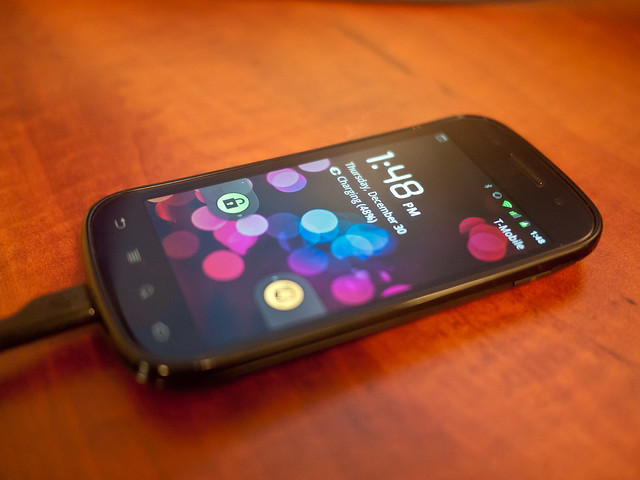
Nexus S-001

The phone is physically nice. The device is just a bit too plasticky, in my opinion, similar to the way that the iPhone 3 G and 3 GS are. I imagine this contributes positively to the weight of the phone, which is very light in the hand. It’s noticeably lighter than my iPhone 3 GS and much more comfortable in this regard than the original Droid.

The Nexus S has an ever-so-slight inward curve to its face, which is both comfortable and attractive. The face of the phone is even more minimalist that the iPhone: it has absolutely no buttons and only a hint of the speaker, front-facing camera and light sensor. While I miss the main button from the iPhone to activate the Nexus S, I think the face of the phone is sexy.

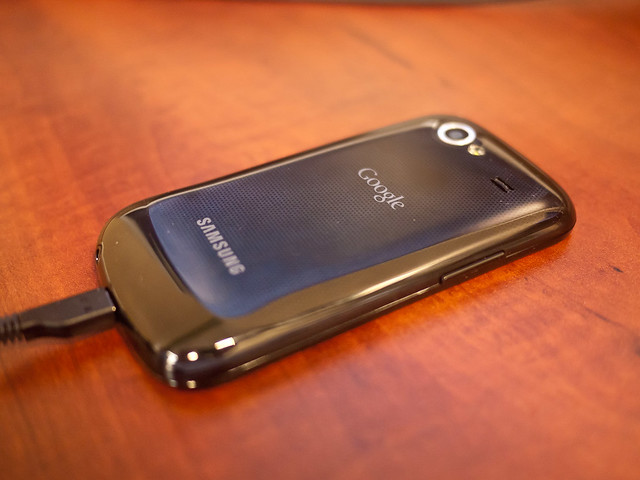
Nexus S-002

The back appears almost piano black, but actually has a very slight almost-carbon-fiber pattern to it on close inspection. It’s adorned with simple, tasteful “Google” and “Samsung” logos, shunning the “fine print” of the iPhones I’ve had. Other than that, the camera, LED flash and what appears to be a speaker or rear mic are all that are apparent on the back. There is a slight bump to the back of the device, which seems to be in vogue these days. This one is at the bottom of the phone rather than the top, and it is comfortable in practice. The back comes off with some effort, providing access to the user-replaceable, rechargeable battery and the SIM card slot.

There are two buttons on the sides: the power button on the right and volume rockers on the left. There’s a Micro-USB plug and headphone jack on the bottom. Very minimalistic. Missing are the four physical buttons and trackball/pad that are standard on every Android device I’ve used. Samsung has chosen to make the buttons soft buttons that appear only when the phone is activated—a nice touch. The other control, which is a trackball on the Nexus One, is gone completely. The newest version of Android, 2.3 or Gingerbread, provides software mechanisms to do text selection, so the trackball is unnecessary. I always thought that control seemed out-of-place on a touchscreen phone, so I’m happy to see its elimination.

One aspect I loved about the Droid last year was its screen. What a difference a year makes! I had the opportunity to use the Nexus S side-by-side with the Droid, and the Nexus S’s screen is better in every regard. The screen is bright, detailed and responds well to touch input. Unfortunately, it’s not up to the comparison with the iPhone 4′s higher resolution Retina Display. So, while the screen was the biggest physical factor in favor of the Droid versus the then-current iPhone 3 GS, this year’s iPhone handily wins over this new flagship Android device.

Miscellany: The speaker is acceptably loud—louder than the iPhone 3 GS. Call quality is good on the T-Mobile network, and I perceive it to be slightly better than the AT&T-powered iPhone. I haven’t used the camera. As I said in my post about the Droid, I carry a small camera with me almost everywhere and have little use for poor-quality phone cameras.

Overall, I’d say the Nexus S acquits itself well in the handling department. It took some getting used to the power button being on the side, but it is otherwise comfortable and attractive. I’d place it solidly above the iPhone 3 GS but behind the impressive iPhone 4 form factor. There’s no comparison to the original Droid I had last year; the Nexus S is hands-down a better handset.

Other Posts About the Nexus S

Reeder Beta Tip

Trying out the Reeder beta for Mac? I am, and initially didn’t like that the left-hand sidebar with the groups of your news sources was a small icon that was hard (for me) to parse. It wasn’t immediately obvious to me, but if you drag the separator mark in the footer to the right, the sidebar expands to show you the group names in plain text. Much better, in my opinion.

Facebook Chat via Adium

I use Adium for IM on the Mac because, like most people, I have friends and colleagues on just about every IM system out there. I don’t love Adium, but it’s not bad. I’ve never been able to get my wife to reliably log on to any IM service during the day, which is annoying when I just want to shoot her a quick short message. She has taken to Facebook Chat, though, for better or worse.

Adium supports Facebook chat, but recently it hasn’t been showing any of my Facebook contacts. It turns out that the implementation in Adium right now is using a screen-scraping technique, and that’s a bit flaky. The solution is to use Facebook’s Jabber interface to its chat service. I configured this in Adium, and now it works like a charm. It also works in iChat, for those who are partial to that client.

MacBook Air

Back-to-Back

My wife’s 15-inch MacBook Pro was a good hand-me-down; I don’t buy shitty computers, and that one was no exception. But it was the first MacBook Pro made, and even as a built-to-order model, it was past its prime. Not only that, but it’s seen hard combat duty on her lap with the kid going from 0-2 years old, and the abuse it’s sustained would radically shorten the life on any computer. The keyboard had been replaced after the baby decided that it would be better with fewer keys. (That’s not a replacement for the faint-of-heart, by the way.) It’s been spilled on, hit, thrown, and generally beaten down. Since it was on its last legs, we went to the Apple Store to see what the best fit was for her replacement.

She knows I love my iPad more than is reasonable, and since she’s a typical home user—email, web, Facebook—she thought that an iPad might be best for her. I convinced her that wasn’t a good idea, mostly because she’s a big Facebook chat user and a pretty sophisticated Google Maps user, and those aren’t the best on the iPad. She doesn’t need or want anything big, so we looked at the 13″ MacBook and MacBook Pro and the newly released MacBook Air family.

Stacking Up

The new Airs are dead sexy. While the 11″ model is interesting, the sweet spot for her seemed to be the 13″: it’s a bit more powerful and has more screen real estate for the price. After comparing them, she liked the Air over the Pro, and we ended up taking home the 13″, 2 GBRAM, 256 GB Air. We have my 17″ MacBook Pro and her old machine laying around, so we weren’t worried about the lack of optical drive. It didn’t end up being a problem anyway, since we simply had Time Machine, which backed up her old machine, migrate her data and apps to the new machine. It took awhile, but it went flawlessly. New machine, same setup.

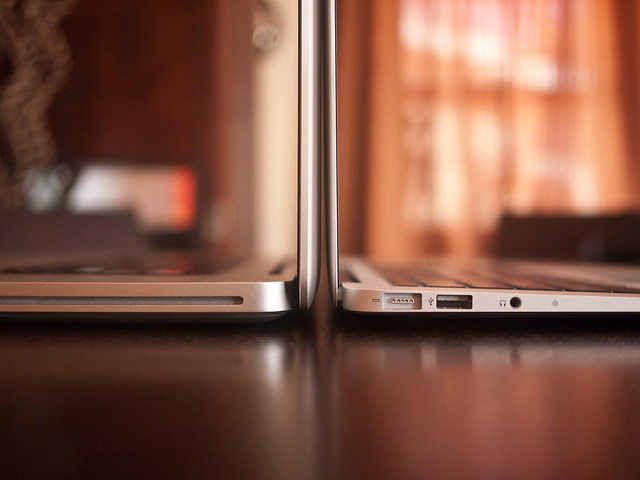
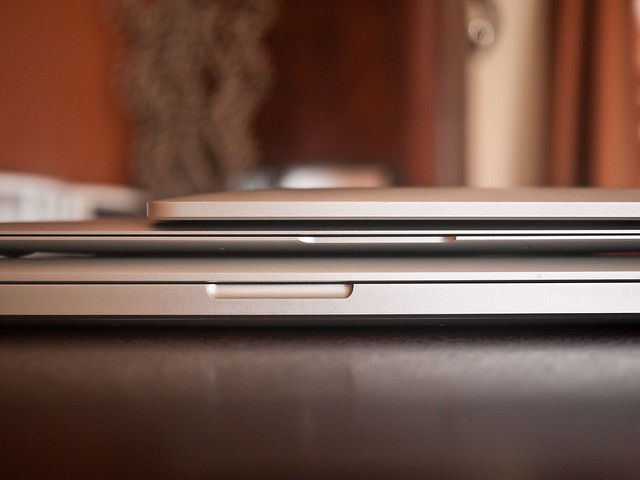
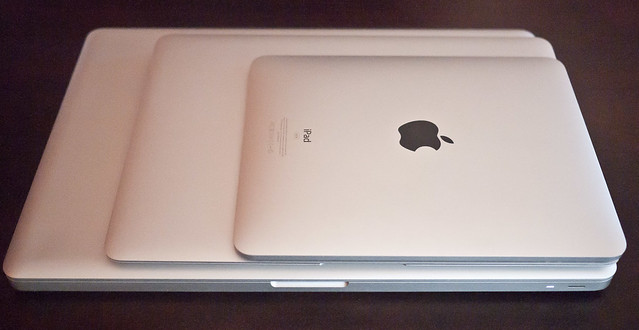
The form factor is great. It’s more on the scale of the iPad than it is my 17-inch MacBook Pro. The screen is unbelievably thin; the LCD is acceptably bright, but less so than my Pro. The pixel density is nice, cramming in more pixels than my original 13″ MacBook Pro was a few years back. It has the standard-sized keyboard from the current generation MacBooks, albeit not backlit. The trackpad is also MacBook standard-issue, which is to say it’s great. Two things that are marked improvements over the Pro line, other than size, are the noise and heat. Rather, the lack of noise and heat. The Air is dead silent without the spinning platters of the hard drive, and since it runs cool to the touch, even under strain, the fans don’t kick up either. When was the last time I could say that a MacBook was cool to the touch? I’m not sure I’ve ever had one that was. The whole thing is a wonderful package.

17″ MBP, 13″ MBA, iPad

The machine is faster than it has any right to be, given its specs, which must be due to the solid state storage. It boots in a jiffy (about 15 seconds from powered off), wakes nearly instantly from sleep, and the battery life is incredible (not iPad incredible, but awesome nonetheless). Every app she has installed launches in one bounce on the Dock. Everything I’ve done has been met with instant, fluid response.

There’s no way I could live with the 2 GBRAM with some of the apps I use, but I have to admit being jealous of the sexiness of this machine. This is her first all-new machine in years, mostly because I upgrade every couple of years and give her my previous model. This is the first time she’s got a newer Mac than me and I think she’s happy to have something that is all hers.

Touch Me, Part 1

Input

I’ve been trying some alternative input devices recently, and wanted to share my experiences for those who are interested. My input devices, both at work and home, have been the most stable part of my computing arsenal for the last few years; it’s the only part of my system that I rarely change. Both at work and home, I use the excellent Matias TactilePro keyboard (although that’s a newer model on the linked page). The Matias has positive, clicky keys that I love. My coworkers don’t complain, but I doubt they have the same love for them, given the racket they make when I’m typing. Still, I’ve had 2 copies in constant use for years. Mousing duties have been handled by the Logitech MX Revolution which has been solid and comfortable.

Being a long-time Macbook Pro user—I’ve used a Mac laptop as my only machine for work and play off and on since the early Powerbook days, and exclusively for over a decade—I’m very comfortable with the Apple keyboard and trackpad. Especially with the latest versions, Apple has dialed it in, in my opinion. The trackpad has been particularly refined in the recent past, as Apple gets more and more behind its touch surfaces. Even though I’m very comfortable with the trackpad when using the laptop on its own, I didn’t seriously consider the recently introduced Magic Trackpad until I watched the “Back to the Mac” presentation, and the Lion operating system. It’s clear that touch is going to be an even bigger part of Mac OS X in that version of the OS, and I think it’s worth seeing how a trackpad would work as a desktop input method. So I bought one.

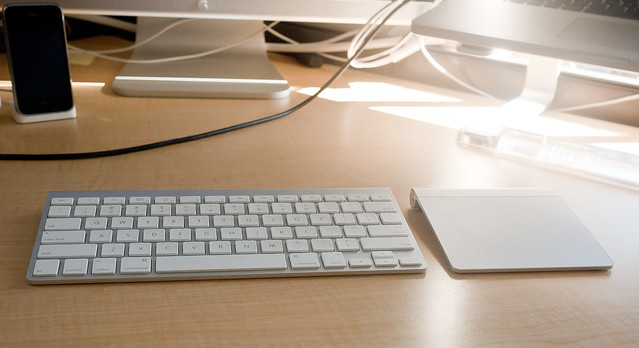
When I first bought the Trackpad, I was ambivalent. I mean, it was pretty much what you’d expect: a standalone version of what’s on the current Macbook lineup. One thing I didn’t like was the angle at which my wrist was turned when the trackpad was to the right of the keyboard instead of in front of it. To narrow that gap, I decided to try a different keyboard. Enter then Bluetooth-connected Apple Aluminum Keyboard. It’s the perfect companion to the Magic Trackpad, and its small size brought the trackpad in closer and reduced my wrist rotation. I’d bought the keyboard back when it was first introduced, but never really used it as my primary keyboard. There are things I like about it, namely the iTunes controls that are mapped to the function keys and the small size, but in general it’s not as good as the Tactile Pro.

I think the Magic Trackpad is different, though, in that after more than a month of using it, I think it’s a worthy mouse replacement even now, before the enhancements Lion is going to bring. I find that now that I’m using a trackpad all day, every day, I’m using the newer gestures more than I did before. I mean I’ve always used the two-finger scroll and tap to click, etc. But now that I’m using the Magic Trackpad, I’ve made some other adjustments that are now habit, and I love them.

First is a switch from double-tap and drag to drag or move objects. If you don’t know what I’m talking about, go to the Trackpad System Preference pane, and under “one finger”, select “Drag” and “Drag Lock”. I’ve been dragging that way for years, and was always happy with it, but for limited periods. Now I’ve trained myself (it took a couple days of get it in muscle memory), I love using three-finger dragging. It’s just like it sounds: you place the pointer on a draggable item, like the title bar of a window, and drag with three fingers. If you get to the end of the trackpad and need to keep dragging, you can lift and continue, like you would with a mouse, as long as the transition is done reasonably quickly. It’s a nice, fluid way to drag.

Second is the four-finger swipes up and down to do Exposé. Four fingers up the trackpad, and the desktop clears, like F11 used to (or Command-F3 on a newer Mac keyboard layout). Four fingers down is the “standard” all windows Exposé that I used to trigger with F9. I really like those gestures; they feel really natural in use, and it took no time at all before I was using them all the time instead of the function keys. I can’t wait until the four fingers sideways motions are more useful—the current Command-Tab-app-switcher replacement behavior is terrible and I never use it instead of Command-Tab itself.

Lastly, I love the scrolling with inertia. Two finger scrolls can be “flicked”, and the scroll continues naturally, like on an iPhone or iPad. I was using this on the laptop before the Magic Trackpad, but now I enjoy it all the time. It’s a nice, intuitive effect and I’m hoping Lion brings more of these kinds of small things to the Mac.

Overall, it’s been a good experience. I’m probably going to go back to my old keyboard, which means I’ll need to figure out how to configure my desk to get around the wrist angle issue, but I have some ideas to try there.

Next post on this topic, I’ll talk about my experience with the Wacom Pen & Touch tablet, which I’ve had for a few months now, but never written about. It’s got some similarities to the Magic Trackpad, but since it also has a stylus, many other interesting bits it brings to the table.

Empire Strikes Back Director Dead at 87

Irvin Kershner is dead at 87. I just watched The Empire Strikes Back with my two-year-old daughter yesterday. (Well, OK, she watched the beginning of it, and paid spotty attention to it thereafter, but I watched it yesterday.) Man, what a great movie that is; he should be proud of it being a defining moment in his career.